


Photo Editor - Polish
4.879.29K Reviews
App Specs
- Version
- 1.765.262
- Updated On
- License
- Free
- Downloads
- 100,000,000+
- Developer
- InShot Inc.
- Categories
- Photography
- Platform
- Android, iOS
Screenshots
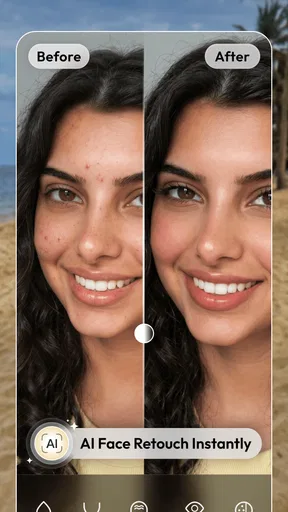
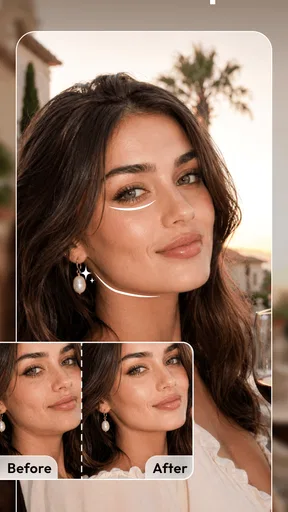
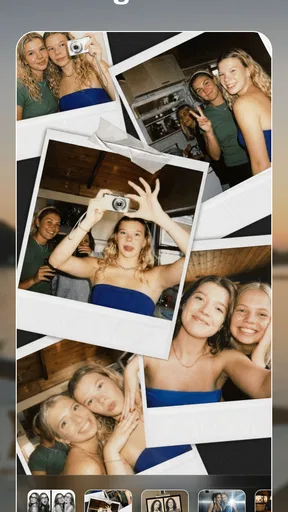
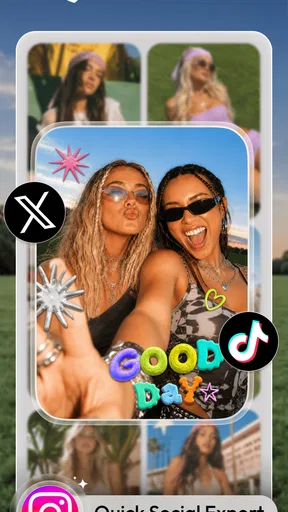
 Analysis by AppCompare
I tend to reach for a photo editor when a picture is already good enough to keep but not quite ready to share. A dim face, a flat-looking sunset, or a selfie that needs a small adjustment can turn a quick edit into a fiddly project. AI Photo Editor - Polish is built around making those routine fixes feel approachable, with automated enhancement as its central draw rather than a complicated set of manual controls.
The appeal of an automatic first edit
The app is a free photography editor from InShot Inc., and its main idea is straightforward: let AI handle some of the initial work of improving a picture, then decide whether the result needs anything else. That can be useful when I want a photo to look clearer or more lively without adjusting every color and light setting by hand. It is also a different starting point from an editor that puts sliders and detailed correction tools front and center.
That convenience is best treated as a first pass, not as a promise that every picture will be improved in exactly the right way. An automatic adjustment has to make a general judgment about a photo, while I may have a specific mood in mind. I check the result against the original before keeping it, especially when the image relies on soft shadows, muted colors, or natural skin texture.
How I would work through an edit
For a quick everyday edit, I would begin with the AI enhancement and then pause to look at the whole image rather than tapping through every tool. If the main subject now stands out and the lighting feels more balanced, there may be no need to add a filter or effect. If the enhancement makes the picture feel too intense, I would try a different creative direction or leave the original alone instead of stacking edits just because they are available.
A useful habit is to make one change at a time. Try the enhancement, inspect faces and bright areas, then test a filter only if the photo still needs a particular mood. This makes it easier to see which choice helped and which one pushed the image away from what you wanted. The app’s broad range of creative options is appealing, but restraint is often what keeps a quick edit believable.
This approach also suits people who make images for different purposes. A photo intended for a family chat may need only a modest lift, while a picture for a birthday card or social post can benefit from a stronger visual style. I would keep those goals separate: first make the image readable, then use decorative choices only when they support the message.
When a fast enhancement earns its place
Imagine taking a group photo at a restaurant. Everyone is in the frame, but the indoor light leaves the faces looking dull and the background distracting. An automatic enhancement gives me a quick place to start; I can check whether it improves the faces without making the scene look unnaturally bright. If the result is still not right, a small amount of retouching or a restrained filter may be enough. For a photo that matters, I would save time for that review instead of assuming the first edit is final.
Worth Reading Before You Choose

EA SPORTS FC Mobile 26 Is a Bigger Football Game, but It Takes Time

Flipboard Shows What News Apps Must Do Beyond the Feed

Switching to Android Auto Means Rethinking Your Driving Routine

Google Calendar Makes a Crowded Week Easier to Manage

Ludo King Makes the Most of the Minutes Between Plans

Baby Panda World Brings Quick Play to Modern Phones, but Its Game Library Feels Busy
This is where Polish makes the most sense to me: casual pictures, selfies, and images I want to polish before sharing, rather than photography that needs exact color matching or a carefully repeatable look. It can also be handy when I am editing on a phone and do not want to learn a more demanding desktop workflow for a one-off image.
Where the quick route has limits
Automatic enhancement can flatten the distinction between a flaw and an intentional choice. A dark, moody portrait may be meant to stay dark; a sunset may lose its atmosphere if its colors are pushed too far. I would compare the edited image with the original and ask whether the adjustment serves the photo, not simply whether it looks brighter or more saturated.
There is a similar judgment call with portrait retouching. Removing a small blemish or softening skin can be useful, but too much smoothing can make a face look unlike the person in the photo. I prefer edits that are hard to notice at a glance. If the goal is a faithful portrait, I would use those tools sparingly and avoid treating every natural feature as something to erase.
Polish also sits between a basic built-in phone editor and a more technical photo workflow. A phone’s default editor is often quicker for a crop or a simple exposure adjustment, while a specialist editor may offer more control for a series of images that must match. Polish is appealing when I want a more playful, guided editing experience, but it is not automatically the best fit for someone who values precise, repeatable adjustments above speed.
Creative extras can bring their own trade-off. Text and stickers are convenient for a greeting or a casual social post, yet they can make a photo feel cluttered if they compete with the subject. I would settle the image first, then add text only if it has a clear job, such as making a birthday greeting readable. That order makes it easier to avoid decorating a picture that was already finished.
Transforming Your Photos Like Magic
One of the first things you'll notice about the AI Photo Editor - Polish is its user-friendly interface. It's super intuitive, which means you don't need to be a tech whiz to find your way around. As soon as you open the app, you're greeted with a clean layout that makes navigation a breeze.
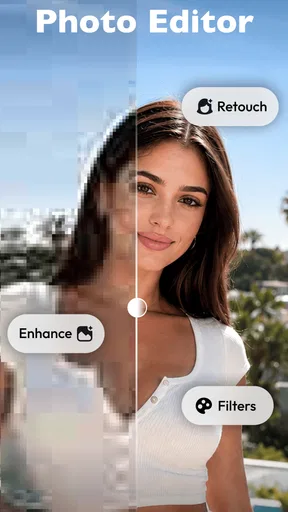
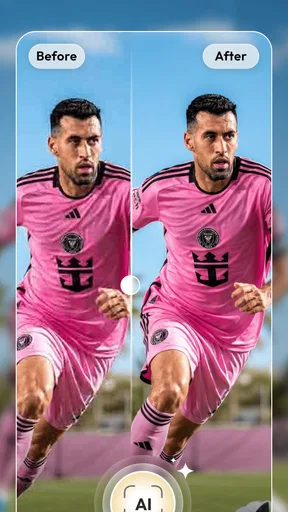
The app’s biggest selling point is undoubtedly its AI-powered tools. These tools are designed to automatically enhance your photos, making them pop with vibrant colors and clarity. I tested this out on a few of my favorite shots, and the difference was night and day. The AI does an impressive job of adjusting lighting and colors, giving each photo a professional touch.
Explore the Creative Filters and Effects
If you’re anything like me, you probably love experimenting with different filters. The app offers a wide selection of filters that can dramatically change the mood and tone of your photos. From vintage vibes to modern aesthetics, there’s something for every style. I had a blast trying out each one, and it’s amazing how a simple filter can completely transform a photo.
But the fun doesn’t stop there! The app also includes a variety of effects, allowing you to add unique touches like bokeh, lens flare, and vignette. These effects can help draw attention to the main subject of your photo or simply add an artistic flair.
For a cleaner result, I would test a filter before adding an effect. A filter already changes the overall mood, so combining it immediately with a strong flare or vignette can make it harder to tell what is actually improving the image. The most useful sequence is often to decide on the tone first, then add one effect only if it gives the subject a clearer focus.
Retouch and Perfect Your Shots
We all have those photos that need a little tweaking, whether it’s removing blemishes or brightening up a smile. This app’s retouching tools are incredibly powerful. I tried out the blemish remover, and it’s as simple as tapping on the screen. The AI detects and removes imperfections without making the photo look unnatural.
There’s also a teeth-whitening tool, because who doesn’t want a dazzling smile? It’s subtle yet effective, enhancing your photos without making the edits obvious. Plus, the smooth skin feature is perfect for giving your selfies that flawless finish.
For a natural-looking portrait, I would start with one small retouch rather than using every available correction. A blemish remover can be useful for a temporary distraction, but skin texture is part of what makes a portrait look real. When editing a group shot, I would also check each face individually: an adjustment that seems fine on one person may look too strong on another.
Customizing with Text and Stickers
Sometimes, you want to add a personal touch to your photos. The app offers a range of stylish fonts and colorful stickers to spice up your images. I found this particularly fun when creating birthday cards or social media posts. You can adjust the size and position of text and stickers, making it easy to customize each photo to your liking.
These tools are most useful when the image has room for them. Before placing a caption, I would look for an area that does not cover a face or the detail that makes the picture meaningful. A short message with a clear purpose usually works better than several decorative elements competing for attention. For a simple photo that I want to preserve as a memory, I would skip the overlays altogether.
Sharing Your Creations
Once you’ve edited your photos to perfection, sharing them is a piece of cake. The app integrates smoothly with social media platforms, allowing you to post your creations directly from the app. Whether you’re sharing with friends or the world, the app ensures your photos look stunning on any platform.
Before sharing, I would take one last look at the crop and the small details. Text that reads well on a larger screen can feel crowded in a social post, and an effect that looks subtle while editing may stand out more once the image is viewed at a glance. If the photo is important, keeping an unedited original gives me the option to try a different treatment later without having to recreate the starting point.
Who will get the most from Polish
The app is a good fit for people who want to improve personal photos without turning editing into a hobby. It is especially useful for someone who likes experimenting with visual styles, making casual cards, or preparing a selfie for sharing. Its approachable layout and automatic tools lower the barrier to trying an edit, while filters, effects, retouching, text, and stickers give the user ways to take the result in a more personal direction.
I would steer away from it if my priority were meticulous control over a large batch of photographs, consistent color across a professional portfolio, or a natural result that must remain untouched by automatic enhancement. In those cases, a more manual editor—or simply the phone’s basic crop and light controls—may be a better match. The right choice depends on whether I value quick creative options or detailed control more.
Polish is free to install and is rated for Everyone. It has an average rating of 4.8 from around 4.6 million ratings, with more than 100 million installs, which shows that it has reached a large audience. The current version is 1.722.249, and it requires Android 9 or later. Optional in-app purchases range from $0.99 to $129.99 per item, so I would check the purchase details in the app before paying for anything and decide whether the free editing workflow already covers what I need.
In conclusion, the AI Photo Editor - Polish is a fantastic tool for anyone looking to elevate their photography. Its powerful AI algorithms and diverse editing features make it a go-to app for both amateur photographers and seasoned pros. So, if you’re ready to take your photos to the next level, give this app a try. Trust me, you won’t be disappointed!
Pros
- User-friendly interface
- easy to navigate.
- Wide range of editing tools available.
- High-quality filters enhance images.
- Fast processing with minimal lag.
- Supports multiple image formats.
Cons
- Ads can be intrusive at times.
- Some features require in-app purchases.
- Occasional crashes on older devices.
- Limited cloud storage options.
- No direct social media sharing.
FAQs for Photo Editor - Polish
What platforms is AI Photo Editor - Polish available on?
AI Photo Editor - Polish is available for both Android and iOS devices. Users can download it from the Google Play Store for Android or the Apple App Store for iOS. Ensure your device meets the minimum operating system requirements for optimal performance.
Does AI Photo Editor - Polish offer any in-app purchases?
Yes, AI Photo Editor - Polish offers in-app purchases. While the app is free to download and use for basic editing features, advanced tools and filters may require a purchase or a subscription. Check the app’s store page for detailed pricing information.
What are the main features of AI Photo Editor - Polish?
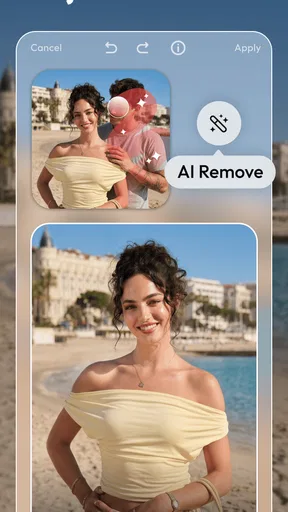
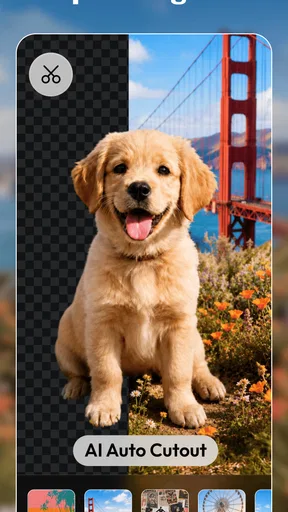
AI Photo Editor - Polish includes a variety of powerful editing tools such as AI-powered enhancements, filters, retouching options, and background editing. It also offers tools for adjusting brightness, contrast, and saturation, as well as advanced features like object removal and face beautification.
Is AI Photo Editor - Polish suitable for beginners?
Yes, AI Photo Editor - Polish is designed to be user-friendly, making it suitable for beginners. The intuitive interface and guided tutorials help users quickly learn how to use the app’s features effectively. Even those new to photo editing will find it easy to enhance their images.
How does AI Photo Editor - Polish protect my privacy?
AI Photo Editor - Polish takes user privacy seriously. The app does not store or share your photos without permission. It complies with privacy regulations and provides settings for users to control data access. Always review the app’s privacy policy for detailed information on data handling.


